Blog

Name is Anant Dubey and the intent to create this blog is to discuss the problems and issues that developer face in the dynamics AX development and to share the new things that come up with the new version of AX.

Wednesday, September 24, 2014

Using Controller Class in Developing SSRS Reports in Microsoft Dynamics AX 2012

Using Controller Class in Developing SSRS Reports in Microsoft Dynamics AX 2012


Overview

Controller class is used to control the report execution as well as preprocessing of the report data. The SSRS reporting framework uses this class to modify the report dialogs, calling the SQL Server reporting services, as well preprocessing parameters for the report.
Following are the scenarios where Controller class can be used:
  1. Modifying a report query based on the input data
  2. Modifying report contract data based on the input data
  3. Control a report parameters dialog
  4. Open different reports/designs from the same menu item based on the input data
  5. Reports that are opened from a form
To create a controller class, extend it with SrsReportRunController.

Prerequisites

  1. Microsoft Dynamics AX 2012
  2. Reporting services extensions must be installed in Dynamics AX

Sample Controller Class

  1. Create a new class. Open AOT → Classes
  2. Right Click on Classes and select New Class. Name it asSSRSDemoController.
example of creating a new class in Dynamics AX
 
  • Open the Class declaration by right clicking on it and selectingView code.
example of viewing code in AOT class AX
 
  • Now write the following code:
class SSRSDemoController extends SrsReportRunController

{

}
  • Create a new method and write the following code:
public static client void main(Args args)

{

//define the new object for controller class

SSRSDemoController ssrsDemoController;

ssrsDemoController = new SSRSDemoController();

//pass the caller args to the controller

ssrsDemoController.parmArgs(args);

//set the report name and report design to run

ssrsDemoController.parmReportName(ssrsReportStr(SSRSSessionQuery,Design));

//execute the report

ssrsDemoController.startOperation();

}

Examples of Controller Class Usage

Based on different scenarios, different methods are overridden as shown in the following examples:
  1. Modifying report query based on the input data

  • Used in those scenarios where a report query needs to be modified based on the caller args parameters or recorded before the report parameter dialog is rendered.
  • Override prePromptModifyContract method to modify the report query as shown below:
public void prePromptModifyContract()
{
    //add a range in the report query  
      SrsReportHelper::addParameterValueRangeToQuery(this.getFirstQuery(),tableNum(SSRSReportDemo),fieldNum(SSRSReportDemo, RecId),SysQuery::value(this.parmArgs().record().RecId));
}
Note: prePromptModifyContract is called by report controller before the parameter dialog is shown to the User.
  • Modifying report contract data based on the input data

  • Used in those scenarios where report contract parameters need to be modified based on the caller args prior to the execution of the report.
  • Override preRunModifyContract method to modify the report contract as shown below:
protected void preRunModifyContract()
{    
    //define object for report contract
    SSRSDemoContract contract;

    //get the reference of the current contract object
    contract = this.parmReportContract().parmRdpContract() as SSRSDemoContract;

    //modify the parameter value of the contract
    contract.parmType(this.parmArgs().parm()); 
}
Note: preRunModifyContract is called by report controller before the report is run.
  • Control report parameters dialog

  • In some scenarios, a report parameter dialog should not be visible to the end user. Controller class is also used to control the visibility of the report parameter UI.
  • Add the following code in the main method of the controller class before startOperation method call to hide/show the report parameter UI:
//hide the report parameter dialog
ssrsDemoController.parmShowDialog(false);
  • Open different reports from the same menu item based on the input data

  • It is used in those scenarios where different reports or different designs of a same report need to be opened from a same menu item depending upon the caller args.
  • Write the following code in main method to achieve this scenario:
public static client void main(Args args)
{    
    //define the new object for controller class
    SSRSDemoController ssrsDemoController;
   
    ssrsDemoController = new SSRSDemoController();
    
    //pass the caller args to the controller
    ssrsDemoController.parmArgs(args);
        
    //if report is run from edit mode then run the EditDesign of the report otherwise run the NewDesign of the report
    if(args.parmEnum() == FormOpenMode::ForEdit)
    {
        //set the report name and report design to run
        ssrsDemoController.parmReportName(ssrsReportStr(SSRSSessionQuery,EditDesign));    
    }
    else
    {
        //set the report name and report design to run
        ssrsDemoController.parmReportName(ssrsReportStr(SSRSSessionQuery,NewDesign));    
    }   
    
    //execute the report
    ssrsDemoController.startOperation();   
}
  • Reports that are opened from a form

  • Controller class is also used when reports are opened from a form and are needed to show selected record details.
  • Use either prePromptModifyContract method or preRunModifyContract method to achieve this scenario.

Tuesday, August 5, 2014

Shortcut Keys in AX

Button Description:- Debugging
--------------------------------

Stop Debugging (Shift +F5) Enables the Watch window.

Insert/Remove Breakpoint:-(F9) Inserts or clears a breakpoint.

Enable/DisableBreakpoint:-(Ctrl + F9) Enables or disables a breakpoint.

Remove all breakpoints:-(Ctrl + Shift + F9) Clears all breakpoints.

Step Over:-(F10)Steps to the next line of code in the current function/method.

Step Into (F11) Steps into the current line if it contains a function or method call.

Step Out (Shift + F11) Steps out of the current function or method.

Run to Pointer (Ctrl + F8) Continues execution until reaching the location of the pointer in the source window.


------------------------------------------------------------------------------------------------------

Button Description:-
--------------------

New (Ctrl+ N) Creates a new job.

Save :- Saves the changes to the active method.

Go (F5):- Executes the class, form, or project.

Toggle Breakpoint (F9):- Turns breakpoints on and off.

Enable/Disable Breakpoint (Ctrl + F9):- Enables or disables a breakpoint.

Remove all breakpoints (Ctrl + Shift + F9):- Deletes all breakpoints from the method.

Compile (F7) :-Checks the code for errors, compiles the code,and saves it.

Lookup properties/methods (Ctrl + Space):- Helps you locate methods or properties.

Lookup label/text (Ctrl +Alt + Space):- Helps you find a label.

Run an Editor Script (Alt + M):- Helps you choose between a selection of scripts.

Help (F1):- Accesses X++ code editor window help.

(shift-F4):-check functions in code window .

Wednesday, July 30, 2014

How to enable disable controls of List Page through Interaction Class

To enable or disable an action pane button

  1. In the AOT, expand Forms and find the form for the list page where the action pane button appears. Use theInteractionClass property of the form to get the name of the interaction class for the list page.
  2. Expand Designs, expand Design, and then expand the Action Pane. Get the name of each action pane button that you want to enable or disable based on the list selection.
  3. Expand Classes, right-click the interaction class for the list page, click Override Method, and then clickselectionChanged. The Editor window opens and displays the selectionChanged method.
  4. Check that Control which you want to Enable or Disable has property AutoDeclaration is set to Yes.
Syntax:-
public void selectionChanged()
{
TableName TableBuffer = this.listPage().activeRecord(queryDataSourceStr(QueryName, DataSourceName));
Super();
if(Condition)   //like - if(TableBuffer.fieldName == Something)
this.listPage().actionPaneControlEnabled(formControlStr(FormName, ControlName),true);

Example:-
public void selectionChanged()
{
    Requisition requisition = this.listPage().activeRecord(queryDataSourceStr(RequisitionQuery, Requisition_1));
    super();
    if(requisition.WorkflowApprovalStatus == WorkflowApprovalStatus::Approved)
        this.listPage().actionPaneControlEnabled(formControlStr(RequisitionListPage,Edit),true);
    else
        this.listPage().actionPaneControlEnabled(formControlStr(RequisitionListPage,Edit),false);
  }


Thursday, June 19, 2014

What is Model and ModelStore in ax 2012

Basic Info:
Models were introduced in Microsoft Dynamics AX to help partners and customers more easily install and maintain multiple solutions side by side in the same layer. This topic introduces the concept of models, and describes how models relate to layers and label files. This topic also describes the model store, which is the part of the Microsoft Dynamics AX database in which models are stored. 


Models:
A model is a set of elements in a given layer. Each layer consists of one or more models. Each layer contains one system-generated model that is specific to that layer. Every element in a layer belongs to only one model. In other words, no element can belong to two models in the same layer, and every element must belong to a model.

A model is permanently associated with the layer that is created in. If you need to move one of your models from one layer to another, you must create a project from the model in the AOT, export the project as an xpo file, create a target model in the desired layer, delete the original model to avoid having to resolve layer conflicts, and import the xpo file to the target model. If you are moving elements between models in the same layer, you can use the Move to model command in the AOT.
ModelStore:
Models are stored in the model store. The model store is the part of the Microsoft Dynamics AX database in which all application elements for Microsoft Dynamics AX are stored. Customizations are also stored in the model store. The model store replaces the Application Object Data (AOD) files that were used in earlier versions of Microsoft Dynamics AX. Models that have been installed in the model store are used at run time.
Note: Models can be exported to files that have the .axmodel extension. These files are called model files. Model files are deployment artifacts. Model files can be signed with strong name signing and Microsoft Authenticode signing.

How to manage Label files with Model:
In Microsoft Dynamics AX 2012, label files, or ALD files, are part of models. A label file must be added to a model before the model can be installed. After a model has been installed, ALD files are pulled from the model store to the local of Application Object Server (AOS) instance when the AOS is started. When the AOS is shut down, the ALD files are pushed back to the model store.
ALD files from earlier versions of Microsoft Dynamics AX are not part of a model file. However, you can import these files into the model store from the Label Files section of the Application Object Tree (AOT). Use the Create from file shortcut command.
Note: The ALD file from an earlier version of Microsoft Dynamics AX must not be located in the application folder of AOS. Otherwise, you cannot import the file.

Working with label files across solutions

It is recommend that you use one label file per solution to simplify installation.
If you find that you require multiple label files, it is recommend that you create a single shared, cross-solution label file and package it as a model file. Then, when you install solutions, you must install two models: the solution itself and the label model.
If you want to ship additional languages, you can add the languages to the solution model, increment the model's version number, and then reimport the model.

Monday, June 9, 2014

How to Install MICROSOFT DYNAMICS AX 2012 R3, Window Azure


OVERVIEW:-
·       Latest version of AX released on 1 may 2014.
·       It is a Demo version also known as V 1.0
·       Next major release ‘Rainier’ will release in 2015.

·       Microsoft has also made many enhancements to Warehouse Management and Retail Dynamics AX 2012 R3.

System Requirement:-
·       Windows Server 2012 R2
·       SQL Server 2014
·       Windows 8.1
·       Windows Azure(Iaas)
·       Internet Explorer 11


New Changes in AX 2012 R3:-

·       Automated deployment of AX 2012R3 in Windows Azure.
·       Building Microsoft AX services integration with the Microsoft Windows Azure Service Bus
·       Data synchronization to multiple instances of Microsoft Dynamics AX
·       Optimizing the performance of Microsoft Dynamics AX deployment
·       Create Microsoft Dynamics AX builds using the new X++ server-side parallel compiler
·       List of New Modules in Microsoft Dynamics AX 2012 R3 or New Modules in Microsoft Dynamics AX 2012 R3
      o  Warehouse Management
      o  Transportation Management
      o  Call Center
      o  Trade Allowance Management
                      o Retails Essentials

This is a list (not exhaustive) of some new or enhanced features:
·         Demand forecasting
·         Modern Point of Sales
·         Call center sales
·         Customer and vendor Rebate management
·         Product kits (retail)
·         Serial Number Tracking Enhancements
·         Product change management
·         Master Data Management
·         Hosting in Azure supported (IaaS)
·         Lifecycle Services
·         Support for Microsoft SQL Server 2014

      Globalization/ Localization of Ax 2012 R3:-
·       Austria
·       Brazil
·       France
·       Germany
·       Japan
·       Mexico
·       Russia
·       India(coming soon)

How to Install Dynamics AX 2012 R3:-

Prerequisites:-
·       Windows server 2012 R2 should be install
·       SQL server 2014 should be install
·       Uninstall all component of AX 2012 R2.

Step 1:-
Check all prerequisites.

Step 2:-
Select Components. Database, AOS (Application object server) and Client is must.

Step 3:-
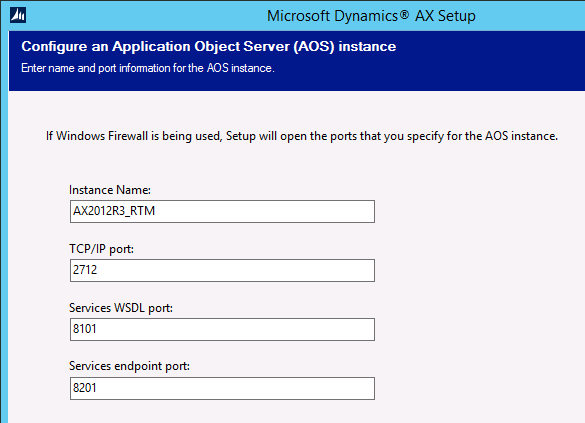
Insert AOS name and port number.


Step 4:-
Next and finish.


What is Window Azure?
Azure is an open and flexible cloud platform that enables you to quickly build, deploy, and manage applications across a global network of datacenters that are managed by Microsoft. Azure enables cloud computing. Cloud computing is the delivery of computing capabilities as a service. Cloud computing makes it easy to access IT resources such as computers, networking, and storage.
You can deploy Microsoft Dynamics AX 2012 R3 on Azure. When you do, you may realize the following benefits:
·       Reduce costs
·       Save time
·       Gain flexibility

Azure offers three types of services:-
·       Software-as-a-Service (SaaS):- You use a web browser to use applications that are hosted in the cloud.

·       Platform-as-a-Service (PaaS):- You don’t manage or control the network servers or operating system.  It allows you to focus on the business logic of applications.

·       Infrastructure-as-a-Service (IaaS):- You have control over your virtual machines and the network configuration, but you don’t have to worry about hardware.


Difference between List, Set, Container and Map

Containers:
Containers are dynamic and have no limits. They can contain elements of
almost all data types: Boolean, integer, real, date, string, container,
arrays, tables, and extended data types. However, objects may not be stored
in containers.
Containers in AX are used very often. It’s easy to work with them. But…
data in containers are stored sequentially, and thus retrieved sequentially.
This means that containers provide slower data access if you are working with
_large numbers_ of records. In case of large numbers of records use temporary
tables.

List:
Lists are structures that may contain any number of elements that are
accessed sequentially. Lists may contain values of any X++ type. All the
values in the list must be of __the same__(this is the main difference
between lists and containers) type, given in the creation of the list. The
implementation of lists is such that traversal of the list elements is __very
fast.
Take a look for example at class Dialog addControl() method.
There controls are stored in ctrls List.

Map:
A map is a data type that associates one (key) value with another value [An
analog - a small table in memory with two fields: Keys, Values]. Both the key
and value values may be of any valid X++ type, including objects. The types
of the key and the value are given in the declaration of the map. The
implementation of maps is such that access to the values is _very fast_.
Don’t confuse map X++ types with Map objects in AOT, wich are used for
mapping tables with similar structures of fields
Set:
The functionality of Sets is similar with list.  A Set is just an unordered list of items, while a list of items held by a Map
are indexed via via a key.
Take look at
\Classes\sysLabel\LabelModuleId().
In any case use Search in AOT\Classes or Forms and look how are used
different X++ types in AX.

Thursday, May 22, 2014

Get Employee email with X++

public Email GetEmployeeEmailFromEmplId(EmplId emplId)
{
    Email       email;
    UserId      userId;
    ;
   
    if(!emplId)
        return '';

    userId = SysCompanyUserInfo::emplId2UserId(emplId);
    email = SysUserInfo::find(userId, false).Email;
   
    return email;
}